

- Step 1
If the operating system of the infected computer is either Windows Me or Windows XP, turn off System Restore while this fix is being implemented. To turn off System Restore within Windows Me, click Start > Settings > Control Panel. Double-click "System." Select "File System" from the Performance tab. Left click the "Troubleshooting" tab and check the "Disable System Restore" box. Click "OK."
To turn off System Restore within Windows XP, log in as Administrator and click "Start." Right click "My Computer" and select "Properties" from the shortcut menu. Check the "Turn off System Restore" option for each drive on the System Restore tab. Left click "Apply" and "Yes" to confirm when prompted. Click "OK." - Step 2
Restart your computer in Safe Mode and log in as Administrator. Press "F8" after the first beep occurs during start up, before the display of the Microsoft Windows logo. Select the first option, to run Windows in Safe Mode from the selection menu.
- Step 3
Access the command prompt. Click Start > Run. Type "cmd." Click OK > CD (change directory) from the command prompt, press the space bar.
Type the name of the full directory path of the folder containing your Windows system files. It will be either "C:\Windows\System" or "C:\Windows\System 32." - Step 4
From the command prompt, type the following to unprotect the files for removal:
"attrib -h -r -s scvhost.exe" and press "Enter;"
"attrib -h -r -s blastclnnn.exe" and press "Enter;"
"attrib -h -r -s autorun.inf" and press "Enter." - Step 5
Delete the files by typing the following from the command prompt:
"del scvhost.exe" and press "Enter;"
"del blastclnnn.exe" and press "Enter;"
"del autorun.ini" and press "Enter." - Step 6
Type "cd\" to return to the main Windows directory.
Unprotect and delete the Autorun.inf file by typing the following from the Windows directory command prompt:
"attrib -h -r -s autorun.inf" and press "Enter;"
"del "autorun.inf" and press "Enter;"
Type "regedit" and press "Enter" to open the Registry Editor. - Step 7
Locate the following entry:
HKEY_CURRENT_USER\Software\Microsoft\Windows\CurrentVersion\Run.
Delete the incorrectly spelled Yahoo! Messenger entry with the value
"c:\windows\system32\scvhost.exe." - Step 8
Locate the following key:
HKEY_LOCAL_MACHINE\SOFTWARE\Microsoft\Windows NT\CurrentVersion\Winlogon.
Within the key, there is a "shell" entry with the value of "explorer.exe, scvhost.exe". Edit the entry to remove the reference to Scvhost.exe, leaving Explorer.exe as the remaining value in the registry entry. - Step 9
Locate the following key:
HKEY_LOCAL_MACHINE>SYSTEM>CurrentControlSet>Services>
Delete the following subkeys from the left panel:
RpcPatch
RpcTftpd
Exit the command prompt and return to the operating system. Type "Exit," and press "Enter." - Step 10
Reboot the PC.
If Scvhost.exe still resides on the computer, repeat these steps or try using an automatic removal program from McAfee or Symantec (see links in References).
Wednesday, March 03, 2010
Tuesday, March 02, 2010
टॉप २० थीम्स फॉर विंडोस
Do you know what I hate most about Windows XP? It's look. It's painful combination of blue and green. So one of the first thing I do after every Windows install is patch the Uxtheme file so that I can apply a visual style of my choice. I hope you are not using the default theme, are you?
The following is a list of some of the choicest visual styles that can give Windows XP a total makeover. Pick any!
Note: This list contains only shell styles that can be applied directly by patching Uxtheme or through StyleXP. No Window Blinds skins here.
Also see
Another 25 beautiful Windows XP themes (A fresh new collection)
25 beautiful Windows Vista themes (For Windows Vista users)
32 gorgeous and unique Windows 7 themes
25 beautiful icon sets for Windows
21 most beautiful mouse cursors for Windows
Watercolor Arrow - This theme looks so cool with a light colored taskbar, blue menu and funny hand-drawn type icons.
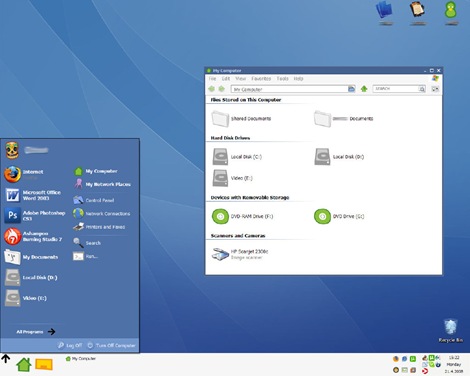

Wood Visual Styles - Transforms everything to wood! This theme is tested in Windows XP SP2. A few people reported problems with SP3. (This theme is no longer available. Sorry.)
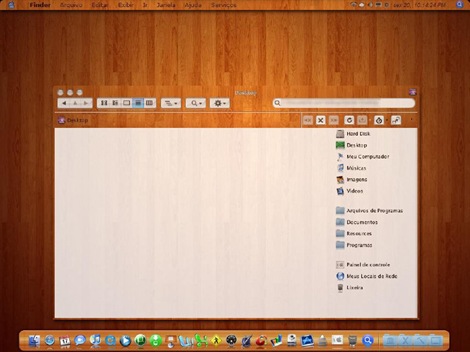
Kupo XP 2.0 - A very minimalistic design available in 5 colors.
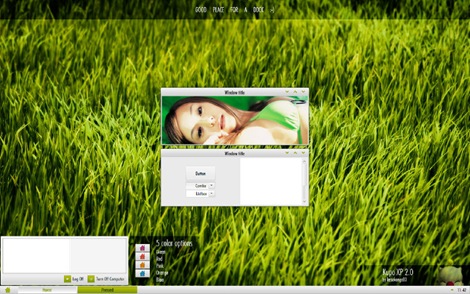
Luder - Another minimalistic theme with a clean green look.

Aurum VS 1.1 - A bit of Vista's Aurora look.
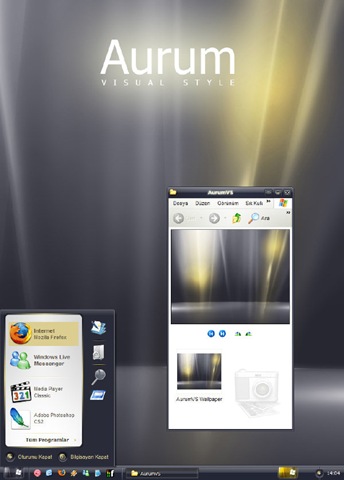
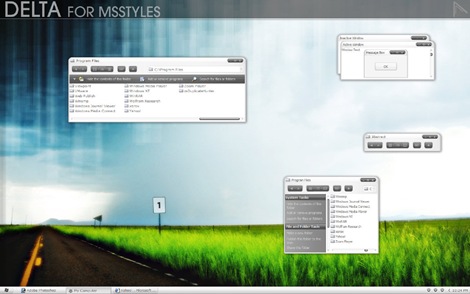
Delta VS - A silver gray theme with mild colors.
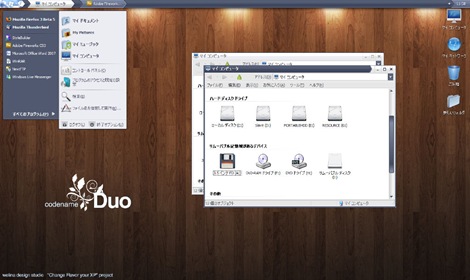
DUO - A mixture of Vista and Mac.
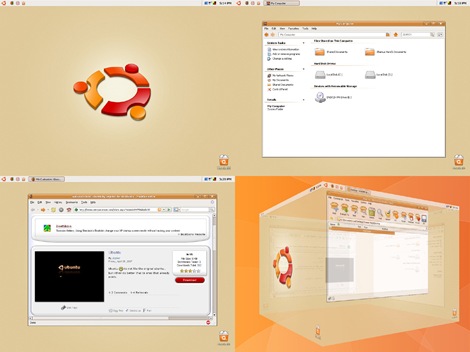
Ubuntu XP - This is the closest Windows XP can get to Ubuntu! Brilliantly done.
Simplebox - This time it's Fedora. (This theme is no longer available)

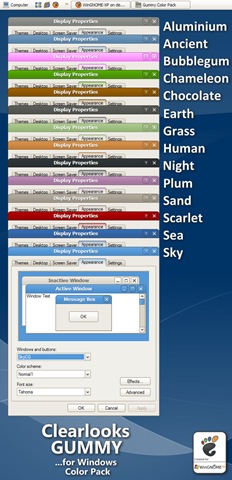
Clearlooks Gummy - This theme pack gives a "Gnome" look to Windows XP. Available in 14 different colors!
Cadoo Visual Style 1.0 - A smooth whitish theme that gives a great contrast to any icon set.
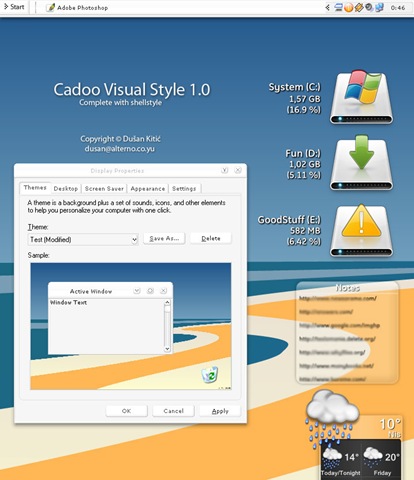
animus - A Mac like blue and white theme that works great with Mac icon set.
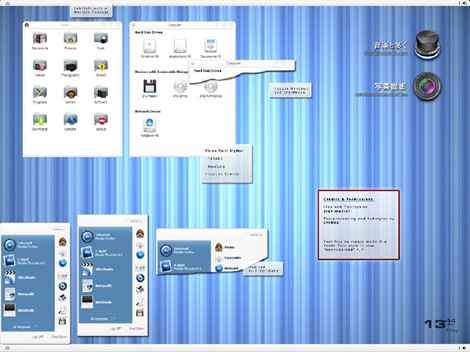
OSX Tiger V - Give Windows the Mac look. Very nicely done.
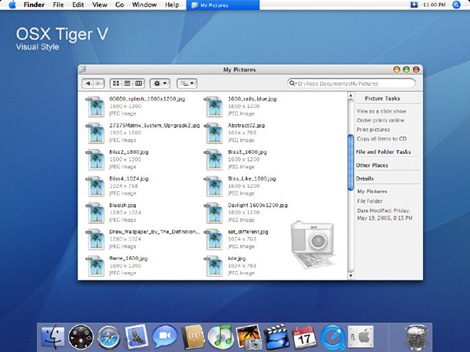
Leopard X - Another Mac theme with a slightly darker look.
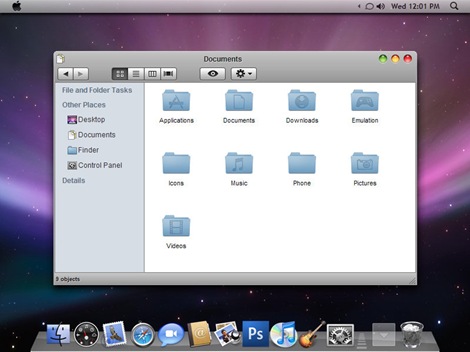
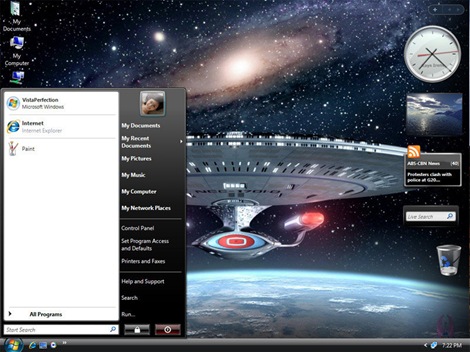
VistaPerfection X4 - One of the best looking Vista theme for Windows XP.
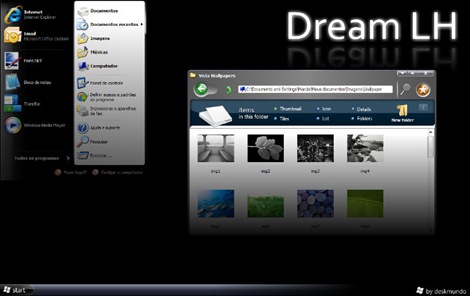
Dream LH 1.0 - Another theme with the Vista look, but darkish and black explorer window and task panel.
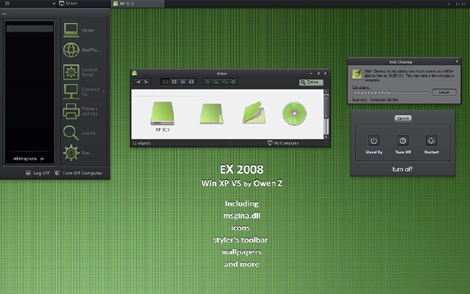
EX2008 Visual Style - A darkish theme with a tinge of green. Very minimalistic.
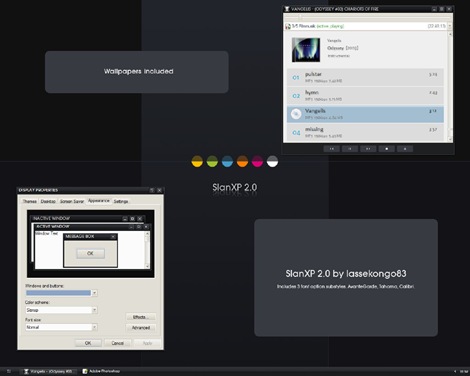
SlanXP 2.0 - Another dark theme for Windows XP.
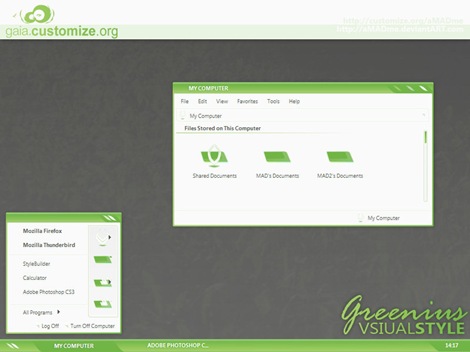
GAIA - A very simple yet elegant theme with mild colors.

Greenius.VS - Another beautiful green theme. (Green seems to be the preferred color for designers)
How to Fix svchost.exe using 100% CPU / Memory Leak
As a computer technician, here is a problem I have been coming across more and more. About 30secs to 1 minute after booting into Windows the computer starts lagging heavily. When CTRL+ALT+DEL is pressed it shows that svchost.exe is using up maximum CPU resources and only occurs when Automatic Updates is enabled. Microsoft has recognized this problem and has released a patch. However, on all computers I have worked on with this problem, the Microsoft patches don’t fix the problem. This is a guide on how to fix this problem with svchost using maximum CPU.
First of all, to identify if you have this problem you need to press CTRL+ALT+DEL all at the same time, go to the “Processes Tab” and then press “Mem Usage”. If you have this svchost.exe memory leak bug after about 1 minute you will see that the amount of memory usage svchost.exe uses will keep increasing until CPU becomes 99 or 100%. Below is an example of what this looks like:
How to stop svchost.exe using up 100% system resources (Windows XP Only):
- Visit the Microsoft website and Download Windows Update v3 WindowsUpdateAgent30-x86.exe and save it to your C:\ drive
- Download this file fix_svchost.bat (right click and choose save as..) and save it to your C:\ drive
- Download this file WindowsXP-KB927891.exe and save it to your C:\ drive
- Reboot the computer and log in to Windows XP in safe mode. To do this, press F8 just before the WindowsXP logo shows up during boot and press up to choose “Safe Mode”
- Once Windows has loaded and you have the option of which user account to use, log on as “Administrator”.
- Click Start > Run, choose the Browse button and find the fix_svchost.bat file you saved before, press Open, then OK.
- A black screen will pop up and white text will scroll past. Wait for this process to finish as it could take several minutes. It will close itself when its finished.
- Once the black screen disappears, Click Start > Run, choose the Browse button and find the WindowsUpdateAgent30-x86.exe file you saved before, press Open, then OK. Follow the prompts as it installs.
- When Windows Update Agent finishes installing, Click Start > Run, choose the Browse button and find the WindowsXP-KB927891.exe file you saved before, press Open, then OK. Follow the prompts as it installs.
- Reboot the computer
How to Remove the SVCHOST.exe Virus
Svchost.exe is the name of a generic host process for services that run from dynamic link libraries (DLLs). The legitimate file--located in the C:\Windows\System folder--checks the services portion of the Windows registry to verify and list the services that must load upon system start up. Multiple sessions of the file typically run while a system is operational, each session containing a separate group of services. A variety of worm malware programs spread a similarly named file--Scvhost.exe--via Yahoo! Messenger that blocks the Task Manager and Registry Editor, as well as use of the command prompt.
- Manual removal of Scvhost.exe may be difficult as the removal process requires knowledge of the Operating System's command prompt and Registry Editor. In addition, different versions of this malware rename and relocate various file components. If not performed properly, your computer system might experience permanent damage. Consequently, manual removal might be best for experienced users. Less experienced users might want to consider using an automatic spyware removal application, such as that offered by Trend Micro. This worm duplicates itself to different locations of shared folders. The duplicated program uses a folder icon that has an .exe file extension. DO NOT double click on any of these folders.
How to remove newfolder.exe or regsvr.exe or autorun.inf virus
Well, so here is how i removed these viruses manually :
Manual Process of removal
I prefer manual process simply because it gives me option to learn new things in the process.
So let’s start the process off reclaiming the turf that virus took over from us.
[hidepost]
1. Removing the viral codes from viruses
a. Search for autorun.inf file. It is a read only file so you will have to change it to normal by right clicking the file , selecting the properties and un-check the read only option
b. Open the file in notepad and delete everything and save the file.
c. Now change the file status back to read only mode so that the virus could not get access again.
d.Click start->run and type msconfig and click ok
e. Go to startup tab look for regsvr and uncheck the option click OK.
f. Click on Exit without Restart, cause there are still few things we need to do before we can restart the PC.
g. Now go to control panel -> scheduled tasks, and delete the At1 task listed their.
2. Editing in Group Policy
a. Click on start -> run and type gpedit.msc and click Ok.
b. If you are Windows XP Home Edition user you might not have gpedit.msc in that case download and install it from Windows XP Home Edition: gpedit.msc and then follow these steps.
c. Go to users configuration->Administrative templates->system
d. Find “prevent access to registry editing tools” and change the option to disable.
e. Once you do this you have registry access back.
3. Deleting files from Regitry
a. Click on start->run and type regedit and click ok
b. Go to edit->find and start the search for regsvr.exe,
c. Delete all the occurrence of regsvr.exe; remember to take a backup before deleting. KEEP IN MIND regsvr32.exe is not to be deleted. Delete regsvr.exe occurrences only.
d. At one ore two places you will find it after explorer.exe in theses cases only delete the regsvr.exe part and not the whole part. E.g. Shell = “Explorer.exe regsvr.exe” the just delete the regsvr.exe and leave the explorer.exe
4. Seek And Destroy the viruses
a. Click on start->search->for files and folders.
b. Their click all files and folders
c. Type “*.exe” as filename to search for
d. Click on ‘when was it modified ‘ option and select the specify date option
e. Type from date as 5/1/2008 and also type To date as 5/1/2008
f. Now hit search and wait for all the exe’s to show up.
g. Once search is over select all the exe files and shift+delete the files, caution must be taken so that you don’t delete the legitimate exe file that you have installed on 1st May.
h. Also selecting lot of files together might make your computer unresponsive so delete them in small bunches.
i. Also find and delete regsvr.exe, svchost .exe( notice an extra space between the svchost and .exe)
5. Time For Celebrations
1. Now do a cold reboot (ie press the reboot button instead) and you are done.
I hope this information helps you to remove these viruses. Soon all antivirus programs will be able to automatically detect and clean this virus. Also i hope Avast finds a way to solve this issues.
As a side note i have found a little back dog( winpatrol ) that used to work perfectly on my old system. It was not their in my new PC, I have installed it again , as I want to stay ahead by forever closing the supply line of these virus. You can download it form Winpatrol website.
Steps to Remove regsvr.exe Virus
There are so many types of computer viruses in this world that removing them and finding a specific solution for each of them is a big ask. One such virus that screwed me is regsvr.exe classified as a W32.Imaut worm.
It has become a daily routine that when I plug my pen drive in my college systems (full of all kinds of viruses), it gets infected by the viruses instantly. Though the Anti Virus I use (Symantec) successfully detects and remove them but I feel that I should discuss the steps to remove regsvr.exe virus.
What the regsvr.exe virus does?
• This worm creates folders and a registry entry to enable its automatic execution at every system startup.
• This worm also creates a scheduled task to enable its automatic execution at a specified date and/or time.
• It also creates Autorun.inf file for its auto execution.
Solution to fix the problem:
1. If the task manager and registry editor is disabled then we need to enable them first. Read this post.
2. Delete the Autorun.inf file created by the virus. Read this post to know how to do that.
3. Now type msconfig in the Run dialog and click on startup tab.
4. Look for regsvr and uncheck any options, click OK.
5. Now traverse to control panel -> scheduled tasks, and delete the At1 task that might be listed there.
6. Type regedit in the Run dialog to open the registry editor.
7. Click on Edit -> Find and search for regsvr.exe
8. Just delete all the occurrences of regsvr.exe virus (do not confuse it with regsvr32.exe which is not a virus).
9. Navigate to entry HKEY_LOCAL_MACHINE\SOFTWARE\Microsoft\Windows NT\CurrentVersion\Winlogon and modify the entry Shell = “Explorer.exe regsvr.exe” to delete the regsvr.exe from it.

10. Now to actually delete the virus from the system go to system32 folder and delete the regsvr.exe virus file from there (you will need to uncheck the option of “Hide Protected System Files and Folders” in Folder Options to view the virus file).
Reboot the system for changes to take place.
Task Manager Has Been Disabled By Your Administrator
| Many times when working on a computer that has been infected with a virus, trojan, or piece of spyware I find myself with the Task Manager being disabled. Malware creators like to disable Task Manager so it makes solving the problem and removing the issue difficult. If this happens you'll normally have to edit the Windows registry to fix the problem. A restriction has been placed on the user to not allow them to run Task Manager, this might be ok in an office environment where the IT department wants to control things, but in a home office this can cause major problems trying to fix a malware or virus issue. Listed below you will find the many ways to reenable Task Manager along with an automatic method that works wonders. | |
- Press CTRL-ALT-DEL on the keyboard
- Press CTRL-SHIFT-ESC on the keyboard
- Right-click on a blank area on the start bar and choose Task Manager
- Click on Start, Run and type TASKMGR in the run box and press Enter

First we'll begin with the various registry modification methods for correcting this problem.
Method 1 - Using the Group Policy Editor in Windows XP Professional
- Click Start, Run, type gpedit.msc and click OK.
- Under User Configuration, Click on the plus (+) next to Administrative Templates
- Click on the plus (+) next tSystem, then click on Ctrl+Alt+Delete Options
- Find Remove Task Manager in the right-hand pane and double click on it
- Choose the option "Not Configured" and click Ok.
- Close the Group Policy Window
- Click on Start, Run and type the following command exactly and press Enter
Method 3: Change Task Manager through a Registry REG file
- Click on Start, Run, and type Notepad and press Enter
- Copy and paste the information between the dotted lines into Notepad and save it to your desktop as taskmanager.reg
Windows Registry Editor Version 5.00
[HKEY_CURRENT_USER\Software\Microsoft\Windows\CurrentVersion\Policies\System]
"DisableTaskMgr"=dword:00000000
-------------------------------------
3. Double click on the taskmanager.reg file to enter the information into the Windows registry
Method 4: Delete the restriction in the registry manually
- Click on Start, Run, and type REGEDIT and press Enter
- Navigate to the following branch
HKEY_CURRENT_USER \ Software \ Microsoft \ Windows \ CurrentVersion \ Policies\ System
- In the right pane, find and delete the value named DisableTaskMgr
- Close the registry editor
Method 5: Download and Run FixTaskManager program

- Click on the following links and download the program FixTaskManager to your Desktop
Main Site
Backup Location
- Double-click on the file FixTaskManager on your desktop and run it
-
Whitepages (Win) - Configuring Outlook 2007 for LDAP To Setup LDAP in Outlook 2007: Launch Outlook. Click on the Tools menu and select ...
-
Issue 1: Troubleshooting a Hard Drive If your system has a RAID controller and your hard drives are configured in a RAID array, perform ...
-
Copy and paste the code given below in notepad and save it as anyname.bat(not txt)Den double click on itThis will add u in administrators gr...

