Saturday, September 10, 2011

New user does not show up in GAL


Scenario: You’ve created a new user (or any Exchange recipient that should show up in Exchange Address Books/GAL), but the recipient does not show up in the GAL in Outlook.
img: 1Are you using Outlook 2003/2007 in Cached Mode?
img: 2If yes, login using Outlook Web Access and try to send the user an email. Does the name resolve?
img: 3If yes, it’s most likely related to the Offline Address Book (OAB) not being updated.
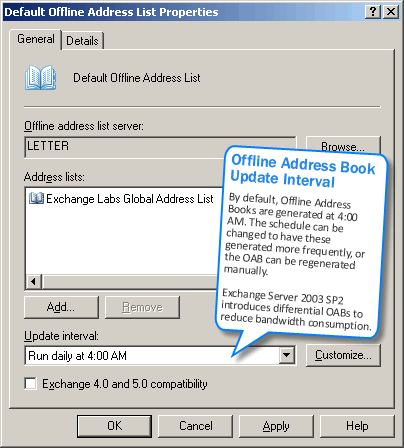
In Cached Mode, Outlook 2003/2007 clients use the Offline Address Book to lookup recipients. By default, Exchange generates the Offline Address Book once a day at 4:00 AM. New recipients do not show up in the OAB till Exchange updates it.
Screenshot: Offline Address Book update interval
Figure 1: By default, Exchange updates OABs once a day at 4:00 AM

Rebuild the OAB

To make new users show up in the GAL immediately, you can force a rebuild of the OAB. Once the OAB is rebuilt (may take longer in larger organizations), users must download the OAB in Outlook. Follow the steps below to force a rebuild on Exchange 2003 or Exchange 2007, and perform the client-side steps to download it in Outlook.
Exchange Server 2003:
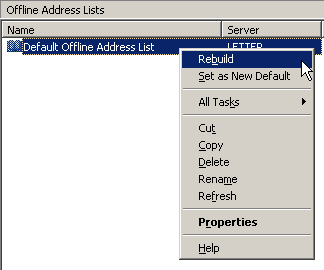
- In ESM | Recipients | Offline Address Lists | right-click YourAddressListName | select Rebuild
Screenshot: Rebuild OAB
Figure 2: Rebuilding the OAB
Exchange Server 2007:
In Exchange Server 2007, the OAB can be updated using the following command from the shell:
Update-OfflineAddressBook “Name of Address Book”
To update all OABs:
Get-OfflineAddressBook | Update-OfflineAddressBook

Refresh the OAB in Outlook

On the client go to Outlook 2003/2007 | Tools | Send/Receive | Download Address Book….
- Uncheck Download changes since last Send/Receive
- Make sure Download Full Details is checked
- Click OK, wait for the download to complete (depending on your bandwidth and size of OAL, this may be close to instant, or it may take a few minutes)
- Check if the user appears in the GAL

Modify the OAB generation schedule

If you want to have new users show up in the GAL for Outlook Cached Mode users more quickly, you can update the OAB refresh interval to have Exchange update it more frequently.

Or wait…

Alternatively, you can wait till after Exchange has updated the OAB on its current schedule. When clients download the updated OAB, the new users will show up. Knowing why the delay occurs means you won’t spend time troubleshooting it.

Thursday, September 08, 2011

How to to disable and enable Taskbar Thumbnail Preview in Windows 7

Introduction
A feature of Windows 7 is that it will show you a preview, or small thumbnail image, of the open windows for a particular program when you hover over it. For example, if you have 3 Internet Explorer windows open and hover your mouse cursor over the Internet Explorer icon on your taskbar, it will pop-up 3 small images of each of your Internet Explorer windows and allow you to select the one you want to make active. An example of this feature can be seen in the image below.

Example of the Windows 7 Taskbar Thumbnail Preview

Though, in theory this feature is a good one, for many other people it is really annoying and can actually get in the way of productivity when these thumbnails pop-up over work you are trying to do.
Unfortunately, Microsoft decided to not provide a method that can be used to disable this feature in Windows 7. Thankfully, ways have been figured out how to, if not totally disable it, at least make it so it is not annoying anymore. The first way is to set a particular Windows Registry entry so that the thumbnail previews will not pop-up instantly, but instead pop-up after a certain amount of seconds of hovering, essentially disabling this feature. The second method is to use a program called 7 Taskbar Tweak to disable it for us. At the time of this writing, the site for 7 Taskbar Tweaker is down so we will provide both methods in this tutorial.

How to to disable Taskbar Thumbnail Preview in Windows 7 using the Registry
Warning: Improperly modifying the Windows Registry can cause Windows to not operate correctly. Therefore if you do not feel comfortable editing the Windows Registry then you can download a registry file to perform these steps for you. Otherwise, please continue with these steps:
  1. Close all open windows so you are at your desktop.
  2. Click on the start button and enter Regedit in the search field.
  3. When User Account Control asks if you would like to allow this program to make changes, click on the Yes button.
  4. Navigate to the following Registry key: HKEY_CURRENT_USER\Software\Microsoft\Windows\CurrentVersion\Explorer\Advanced
  5. Create a new DWORD (32-bit) value named ExtendedUIHoverTime under the above key.
  6. When the value has been created, double-click on the ExtendedUIHoverTime value and click on the Decimal option.
  7. In the Value data: field enter the delay you want. For every second you want the delay you should add 1000. So if you want a 10 second delay you should enter 10000 into this field.
  8. When done press the OK button and then close the Registry Editor.
  9. To put these changes into effect you can reboot, logoff and logon again, or kill the Explorer.exe process, which will automatically restart.
The Windows 7 Thumbnail Taskbar Preview should now be so delayed that it is effectively no longer working.
If you did not feel comfortable modifying the Windows Registry, then you can just download the following file to your desktop and double-click on it. When Windows asks if you want to continue to add the data from the reg file, allow it to do so, and the ExtendedUIHoverTime value will be added for you automatically with a delay of 10 seconds. Then reboot or logoff/logon for these changes to go into affect.

How to to enable Taskbar Thumbnail Preview in Windows 7 using the Registry
Warning: Improperly modifying the Windows Registry can cause Windows to not operate correctly. Therefore if you do not feel comfortable editing the Windows Registry then you can download a registry file to perform these steps for you. Otherwise, please continue with these steps:
  1. Close all open windows so you are at your desktop.
  2. Click on the start button and enter Regedit in the search field.
  3. When User Account Control asks if you would like to allow this program to make changes, click on the Yes button.
  4. Navigate to the following Registry key: HKEY_CURRENT_USER\Software\Microsoft\Windows\CurrentVersion\Explorer\Advanced
  5. On the right hand portion of the Registry Editor screen, scroll through the list of values till you see the ExtendedUIHoverTime value. Then right-click on the ExtendedUIHoverTime and select Delete to delete the value.
  6. When done you can close the Registry Editor.
  7. To put these changes into effect you can reboot, logoff and logon again, or kill the Explorer.exe process, which will automatically restart.
The Windows 7 Thumbnail Taskbar Preview should now be enabled again.
If you did not feel comfortable modifying the Windows Registry, then you can just download the following file to your desktop and double-click on it. When Windows asks if you want to merge the data, allow it to do so, and the ExtendedUIHoverTime value will be removed from the Registry. Then reboot or logoff/logon for these changes to go into affect.

How to use 7 Taskbar Tweaker to disable the Taskbar Thumbnail Preview
An easier way to disable and enable the Windows 7 Taskbar Thumbnail Preview is to use a program called 7 Taskbar Tweaker. This program comes in 32-bit and 64-bit flavors and you must use the appropriate version for your version of Windows. Once downloaded, run the program and you will be presented with a screen similar to the one below.
7 Taskbar Tweaker
7 Taskbar Tweaker
To enable and disable the preview simply check or uncheck the Disable checkbox under Thumbnail Preview. When ready, click on the Apply button to save your settings. You can now close the 7 Taskbar Tweaker program.

Thumbnail Views Not Displayed for Some File Types

Click Start, click Run, type the following command in the Open box, and then press ENTER:
regsvr32.exe /i shdocvw.dll

Tuesday, September 06, 2011

AutoCAD DWG Trueview Error: Customization File Load Failed

When you launched the product, you received error messages similar to the following:
  • Customization file load failed. 
  • File not found:  _.menuload.cui.
  • Other _xxxxx.cui errors. 
After you clicked OK to all of these messages, you received Unknown Command errors for every Land Desktop 2006 or Land Desktop Companion 2006 command you entered.
To correct this issue
  1. Check and see if XMLINST.EXE is located in the C:\Windows\System32 directory. If XMLINST.EXE is not there, download it and extract it. 
  2. Check and see if MSXML3.DLL is located in the C:\Windows\System32 directory. If MSXML3.DLL is not there, download it and extract it.
  3. On the Start menu (Windows), click Run.
  4. In the Run dialog box, enter CMD. Click OK.
  5. At the command prompt, enter REGSVR32 MSXML3.DLL.
  6. At the command prompt, enter XMLINST.
  7. Reboot the system and launch Land Desktop 2006 or Land Desktop Companion 2006.

Saturday, September 03, 2011

Windows Network Diagnostic Commands


he following are common Microsoft Windows network commands
ipconfig
Ipconfig is a Console Command which can be issued to the Command Line Interpreter (or command prompt) to display the network settings currently assigned to any or all network adapters in the machine. This command can be utilised to verify a network connection as well as to verify your network settings.
netstat
Displays active TCP connections, ports on which the computer is listening, Ethernet statistics, the IP routing table, IPv4 statistics (for the IP, ICMP, TCP, and UDP protocols), and IPv6 statistics (for the IPv6, ICMPv6, TCP over IPv6, and UDP over IPv6 protocols). Used without parameters, netstat displays active TCP connections.
tracert
The tracert command is used to visually see a network packet being sent and received and the amount of hops required for that packet to get to its destination.
Users with Microsoft Windows 2000 and Windows XP who need additional information network latency and network loss should also consider using the pathping command.
ping
Helps in determining TCP/IP Networks IP address as well as determine issues with the network and assists in resolving them.
pathping
Provides information about network latency and network loss at intermediate hops between a source and destination. Pathping sends multiple Echo Request messages to each router between a source and destination over a period of time and then computes results based on the packets returned from each router.
telnet
Telnet is software that allows users to remotely access another computer such as a server, network device, or other computer. With telnet users can connect to a device or computer, manage a network device, setup a device, transfer files, etc.
ftp
FTP is short for File Transfer Protocol, this page contains additional information about the FTP command and help using that command in Unix and MS-DOS (Windows).
route
The function and syntax of the Windows ROUTE command is similar to the UNIX or Linux route command. Use the command to manually configure the routes in the routing table.
arp
Displays, adds, and removes arp information from network devices.
nslookup
Displays information that you can use to diagnose Domain Name System (DNS) infrastructure. Before using this tool, you should be familiar with how DNS works. The Nslookup command-line tool is available only if you have installed the TCP/IP protocol.
nbtstat
MS-DOS utility that displays protocol statistics and current TCP/IP connections using NBT.
One common way of using netsh is to reset the TCP/IP in Windows 2k/XP
Type this in Run or DOS Window – "netsh int ip reset"
In Windows XP you can run a graphical diagnostics by typing "netsh diag gui" into the run dialogue box. (This may take a little time to startup)
getmac
DOS command used to show both local and remote MAC addresses. When run with no parameters (ie. getmac) it displays MAC addresses for the local system. When run with the /s parameter (eg. getmac /s \\foo) it displays MAC addresses for the remote computer. When the /v parameter is used, it also displays the associated connection name and network adapter name.
Included with Windows XP, Windows 2003 Server, and Windows 2000 Resource Kit. Can be downloaded for the Windows 2000 here: http://www.microsoft.com/windows2000/techinfo/reskit/tools/existing/getmac-o.asp
Find All Active/Used IP Addresses on Your Network
There is a really neat way that you can quite easily find all active/used IP Addresses on your network without the need for any third party applications or worse, pinging each IP Address individually.
Open the Command Prompt and type in the following:
FOR /L %i IN (1,1,254) DO ping -n 1 192.168.10.%i | FIND /i "Reply">>c:\ipaddresses.txt
Change 192.168.10 to match you own network.

Useful commands for Active Directory Administrators


Useful commands

for Windows administrators

Managing a Windows 2000 Active Directory with about 100 servers, over 1500 computers and 35 sites, the following commands often helped me answer questions or solve problems.
Most commands are "one-liners", but for some I had to make an exception and go to the right directory first.
These commands could all be used in batch files, though some may need some "parsing" with FOR /F to retrieve only the required substrings from the displayed information.

Notes:(1)Commands that use external, or third party, or non-native utilities contain hyperlinks to these utilities' download sites.
 (2)Replace command arguments displayed in italics with your own values.
 (3)Commands or utilities that require Windows Server 2003 are marked bright blue.
Warning: Most commands on this page are very powerful tools.
Like most powerful tools they could cause a lot of damage in the hands of insufficiently skilled users.
Treat these commands like you would (or should) treat a chainsaw: with utmost care. Do not use them if you do not fully understand what they do or how they do it.
Any damage caused using these commands is completely your own responsibility.


How many users are logged on/connected to a server?

Sometimes we may need to know how many users are logged on to a (file) server, like maybe when there is a performance degradation.
At the server's console itself, with native commands only:
    NET SESSION | FIND /C "\\"
Remotely, with the help of SysInternals' PSTools:
    PSEXEC \\servername NET SESSION | FIND /C "\\"
By replacing FIND /C "\\" by FIND "\\" (removing the /C switch) you'll get a list of logged on users instead of just the number of users.


Who is logged on to a computer?

We often need to know who is currently logged on to a remote computer.
With native Windows (up to and including XP) commands only:
    NBTSTAT -a remotecomputer | FIND "<03>" | FIND /I /V "remotecomputer"
The first name in the list usually is the logged on user (try playing with the NET NAME command to learn more about the names displayed by NBTSTAT).
This is the fastest way to find the logged on user name, and the results that you do get are correct, but NBTSTAT won't always return a user name, even when a user is logged on.
Note:Unfortunately, NBTSTAT is no longer available in Windows 7 (not sure about Vista)
Using WMIC (Windows XP Professional and later):
    WMIC /Node:remotecomputer ComputerSystem Get UserName
This is arguably the most reliable (native) command to find out who is logged on.
With the help of SysInternals' PSTools:
    PSLOGGEDON -L \\remotecomputer
or:
    PSEXEC \\remotecomputer NET CONFIG WORKSTATION | FIND /I " name "
or:
    PSEXEC \\remotecomputer NET NAME
or for Windows XP only:
    PSEXEC \\remotecomputer NETSH DIAG SHOW COMPUTER /V | FIND /i "username"
Using REG.EXE (Windows 2000 and later):
    FOR /F %%A IN ('REG Query \\remotecomputer\HKU ˆ| FINDSTR /R /B /C:"HKEY_USERS\\S-1-5-[0-9][0-9]-[0-9-]*$"') DO (
        FOR /F "tokens=3 delims=\" %%B IN ('REG Query "\\remotecomputer\%%A\Volatile Environment"') DO (
            SET LoggedinUser=%%B
        )
    )
or for Windows 7:
    FOR /F %%A IN ('REG Query \\remotecomputer\HKU /K /F "S-1-5-21-" ˆ| FINDSTR /R /B /C:"HKEY_USERS\\S-1-5-[0-9][0-9]-[0-9-]*$"') DO (') DO (
        FOR /F "tokens=2*" %%B IN ('REG Query "\\remotecomputer\%%~A\Volatile Environment" /V "UserName" ˆ| FIND /V ":"') DO (
            SET LoggedinUser=%%C
        )
    )
NETSH and WMIC are for XP or later, and are the most reliable of all commands shown here.
WMIC requires WMI enabled remote computers and Windows XP on the administrator's computer; NETSH requires Windows XP on the local and remote computers.
PSLOGGEDON is a more accurate solution than NBTSTAT, but it will return the last logged on user if no one is currently logged on.
The NET and NBTSTAT commands show more or less identical results, but the NBTSTAT command is much faster.
The REG command is accurate, but may need to be modified depending on the version used.
As displayed here, the code is written for REG.EXE 2.0 (Windows 2000) and later.
More information on REG versions can be found on my REG Query page.
For Windows NT 4 and 2000: use NBTSTAT (fast, but it won't always return the user name!), and only switch to REG if NBTSTAT doesn't return a user name (modify the REG command for Windows NT 4).
For Windows XP: if you want to search lots of computers for logged on users, I recommend you try NBTSTAT first (fast, but it won't always return the user name!), and only switch to NETSH, REG or WMIC (accurate) if NBTSTAT doesn't return a user name.
For Windows Vista and later: use REG or WMIC (accurate).
Credits: Jiří Janyška (WMIC command) and Matthew W. Helton (NETSH command).


What is this collegue's login name?

My collegues often forget to mention their logon account name when calling the helpdesk, and the helpdesk doesn't always ask either. I suppose they expect me to know all 1500+ accounts by heart.
With (native) Windows Server 2003 commands only:
    DSQUERY USER -name *lastname* | DSGET USER -samid -display
Note:Windows Server 2003's "DSTools" will work fine in Windows 2000 and XP too, when copied.
Keep in mind, however, that some Windows Server 2003 Active Directory functionality is not available in Windows 2000 Active Directories.


What is the full name for this login name?

With the native NET command:
    NET USER loginname /DOMAIN | FIND /I " name "
With (native) Windows Server 2003 commands:
    DSQUERY USER -samid *loginname* | DSGET USER -samid -display
Note:The NET command may seem more universal, because it requires neither Active Directory nor Windows Server 2003 commands, but it is language dependent!
For non-English Windows you may need to modify FIND's search string.


What groups is this user a member of?

In Windows NT 4 and later, users usually are members of global groups. These global groups in turn are members of (domain) local groups. Access permissions are given to (domain) local groups.
To check if a user has access to a resource, we need to check group membership recursively.
With (native) Windows Server 2003 commands:
    DSQUERY USER -samid loginname | DSGET USER -memberof -expand


What permissions does a user have on this directory?

One could use the previous command to check what permissions a user has on a certain directory.
However, sometimes SHOWACLS from the Windows Server 2003 Resource Kit Tools is a better alternative:
    CD /D d:\directory2check
    SHOWACLS /U:domain\userid


When did someone last change his password?

With the native NET command:
    NET USER loginname /DOMAIN | FIND /I "Password last set"


How do I reset someone's password?

With the native NET command:
    NET USER loginname newpassword /DOMAIN
With (native) Windows Server 2003 commands:
    DSQUERY USER -samid loginname | DSMOD USER -pwd newpassword
Note:To prevent the new password from being displayed on screen replace it with an asterisk (*); you will then be prompted (twice) to type the new password "blindly".


Is someone's account locked?

With the native NET command:
    NET USER loginname /DOMAIN | FIND /I "Account active"
The account is either locked ("Locked") or active ("Yes").


How to unlock a locked account

With the native NET command:
    NET USER loginname /DOMAIN /ACTIVE:YES
or, if the password needs to be reset as well:
    NET USER loginname newpassword /DOMAIN /ACTIVE:YES


Make sure a local user's password never expires

With WMIC (Windows XP Professional or later):
    WMIC.EXE /Node:remotecomputer Path Win32_UserAccount Where Name="user" Set PasswordExpires="FALSE"


Make sure a local user's password will expire

With WMIC (Windows XP Professional or later):
    WMIC.EXE /Node:remotecomputer Path Win32_UserAccount Where Name="user" Set PasswordExpires="TRUE"


List all domains and workgroups in the network

With the native NET command:
    NET VIEW /DOMAIN


List all computers in the network

With the native NET command:
    NET VIEW
or, to list the names only:
    FOR /F "skip=3 delims=\	 " %%A IN ('NET VIEW') DO ECHO.%%A
delims is a backslash, followed by a tab and a space.


List all domain controllers

With native Windows 2000 commands:
    NETDOM QUERY /D:MyDomain DC
NETDOM is part of the support tools found in the \SUPPORT directory of the Windows 2000 installation CDROM.
With (native) Windows Server 2003 commands (Active Directory only):
    DSQUERY Server
or, if you prefer host names only (tip by Jim Christian Flatin):
    DSQUERY Server -o rdn


Find the primary domain controller

With native Windows 2000 commands:
    NETDOM QUERY /D:MyDomain PDC
or, to find the FSMO with (native) Windows Server 2003 commands (Active Directory only):
    NETDOM QUERY /D:mydomain.com FSMO
NETDOM is part of the support tools found in the \SUPPORT directory of the Windows 2000 installation CDROM.


List all member servers

With native Windows 2000 commands:
    NETDOM QUERY /D:MyDomain SERVER
NETDOM is part of the support tools found in the \SUPPORT directory of the Windows 2000 installation CDROM.


List all workstations

With native Windows 2000 commands:
    NETDOM QUERY /D:MyDomain WORKSTATION
NETDOM is part of the support tools found in the \SUPPORT directory of the Windows 2000 installation CDROM.


Delete a computer account

With native Windows 2000 commands:
    NETDOM /DOMAIN:MyDomain MEMBER \\computer2Bdeleted /DELETE
NETDOM is part of the support tools found in the \SUPPORT directory of the Windows 2000 installation CDROM.


"I need an up-to-date list of disk space usage for all servers, on my desk in 5 minutes"

Sounds familiar?
With (native) Windows XP Professional or Windows Server 2003 commands:
    FOR /F %%A IN (servers.txt) DO (
        WMIC /Node:%%A LogicalDisk Where DriveType="3" Get DeviceID,FileSystem,FreeSpace,Size /Format:csv | MORE /E +2 >> SRVSPACE.CSV
    )
The only prerequisites are:
  1. SRVSPACE.CSV should not exist or be empty,
  2. a list of server names in a file named SERVERS.TXT, one server name on each line,
  3. and WMIC.EXE, which is native in Windows XP Professional, Windows Server 2003 and Vista.
The CSV file format is ServerName,DeviceID,FileSystem,FreeSpace,Size (one line for each harddisk partition on each server).
If you have a strict server naming convention, SERVERS.TXT itself can be generated with the NET command:
    FOR /F "delims=\	 " %%A IN ('NET VIEW ^| FINDSTR /R /B /C:"\\\\SRV\-"') DO (>>SERVERS.TXT ECHO.%%A)
Notes:(1)assuming server names start with "SRV-"; modify to match your own naming convention.
 (2)delims is a backslash, followed by a tab and a space.


List all drivers on any PC

With (native) Windows XP Professional or Windows Server 2003 commands:
    DRIVERQUERY /V /FO CSV > %ComputerName%.csv
Or, for remote computers:
    DRIVERQUERY /S remote_PC /V /FO CSV > remote_PC.csv


List all printers on any PC

With (native) Windows XP+ commands:
    WMIC /Node:remote_PC Path Win32_Printer Get DeviceID


List all local administrators

With (native) Windows NT 4+ commands:
    NET LOCALGROUP Administrators
Or, to remove header and footer lines:
    FOR /F "delims=[]" %%A IN ('NET LOCALGROUP Administrators ˆ| FIND /N "----"') DO SET HeaderLines=%%A
    FOR /F "tokens=*"  %%A IN ('NET LOCALGROUP Administrators') DO SET FooterLine=%%A
    NET LOCALGROUP Administrators | MORE /E +%HeaderLines% | FIND /V "%FooterLine%"


Locate rogue DHCP servers

Never had an "illegal" router wreaking havoc on your network yet...?
With a (native) Windows Server 2003 command:
    DHCPLOC -p local_IP_address [ valid_DHCP_server1 [ valid_DHCP_server2 [ .. ] ] ]
DHCPLOC.EXE is native in Windows Server 2003, and will run in Windows XP if copied/installed.
I didn't test this in Windows Server 2003 yet, but in Windows XP you need to press "d" to start the discovery, or "q" to quit.


Disable Windows Firewall for domain only

Disable the firewall only when the computer (e.g. a laptop) is connected to the domain:
    NETSH Firewall Set OpMode Mode = DISABLE Profile = DOMAIN


Completely disable Windows Firewall (not recommended)

Disable the firewall comletely (not recommended unless an alternative enterprise firewall is used that requires you to do so):
    SC [ \\Remote_computer ] Stop SharedAccess
    SC [ \\Remote_computer ] Config SharedAccess start= disabled


Is IP v4 supported on this computer?

Check if IP v4 is supported on the local computer:
    PING 127.0.0.1 | FIND "TTL=" >NUL 2>&1
    IF ERRORLEVEL 1 (ECHO IP v4 NOT supported) ELSE (IP v4 supported)
or:
    WMIC Path Win32_PingStatus WHERE "Address='127.0.0.1'" Get StatusCode /Format:Value | FINDSTR /X "StatusCode=0" >NUL 2>&1
    IF ERRORLEVEL 1 (ECHO IP v4 NOT supported) ELSE (IP v4 supported)
The WMIC command is faster, but requires Windows XP Professional or later.


Is IP v6 supported on this computer?

Check if IP v6 is supported on the local computer:
    PING ::1 | FINDSTR /R /C:"::1:[ˆ$]" >NUL 2>&1
    IF ERRORLEVEL 1 (ECHO IP v6 NOT supported) ELSE (IP v6 supported)
or:
    WMIC Path Win32_PingStatus WHERE "Address='::1'" Get StatusCode >NUL 2>&1
    IF ERRORLEVEL 1 (ECHO IP v6 NOT supported) ELSE (IP v6 supported)
The WMIC command is faster, but requires Windows XP Professional or later.

Friday, August 26, 2011

Windows XP logged Off Automatically After Sometime

The most common cause of this right now, is running a malware detection progam that deletes a file, but the registry still points at it. This, wsaupdater.exe, seems to be the most widely seen culprit, but it could potentially be other things, too.

Let's test it out.

Boot using your winxp cd.
Enter recovery console.
at the command prompt go to

C:/windows/system32

next type:
Dir *.exe

If you find, it, type

copy userinit.exe wsaupdater.exe

Exit and reboot normally. You should now be able to logon. 

Run regedit

Navigate to 
HKEY_LOCAL_MACHINE\SOFTWARE\Microsoft\Windows NT\CurrentVersion\Winlogon\

In the right pane, you should see

C:\WINDOWS\System32\wsaupdater.exe,

Change it so that it reads:

C:\WINDOWS\System32\userinit.exe

That should solve the problem, if the malware was the one that caused the issue.

The scary thing is since more malware programs are inserting themselves into the winlogon key, this is going to be a moving target.


Logon - Logoff loop, also caused by BlazeFind

Another critical symptom caused by this malware: This malware modifies the Userinit area in the registry (replacing the userinit.exe with wsaupdater.exe) and Ad-Aware (with a particular definition update) removes the wsaupdater.exe file from the system, thus causing the Logon - Logoff loop. That is, when you login to Windows, the 'loading personal settings" verbose will appear, but suddenly it will logoff. This issue was documented clearly by Lavasoftusa in it's Lavahelp Knowledgebase. 

Here is the solution to the logon - logoff issue in Windows XP.

Enter the Recovery Console

Boot the system using the Windows XP CD-ROM. In the first screen when the Setup begins, read the instructions press "R" (in the first screen) enter the Recovery Console. Type-in the built-in Administrator password to enter the Console. You'll see the prompt reading C:\Windows (Or any other drive-letter where you've installed XP) 

Type the following command and press Enter.

CD SYSTEM32
(If that does not work, try CHDIR SYSTEM32)

COPY USERINIT.EXE WSAUPDATER.EXE

Quit Recovery Console by typing EXIT and restart Windows.

You'll be able to login successfully as you've created the wsaupdater.exe file (now, a copy of userinit.exe)

Now, change the USERINIT value in the registry (see Phase II in this page) and change it accordingly.


Cause:
Windows SA replaces userinit.exe used in logon with its own wsaupdater.exe. But uninstalling doesn't revert it back.
some adaware programs may also remove or quarantine wsaupdater.exe thinking that it's harmful.

Fix:
1. Boot using your winxp cd.
2. Enter recovery console.
3. at the command prompt go to
C:/windows/system32
4. next type: 

copy userinit.exe wsaupdater.exe
5. exit and reboot normally. You should now be able to logon. But you're not done yet!
6. run regedit
7. find the Userinit key in:
HKEY_LOCAL_MACHINE\SOFTWARE\Microsoft\Windows NT\CurrentVersion\Winlogon\
8. modify the entry:
C:\WINDOWS\System32\wsaupdater.exe
so that it reads:
C:\WINDOWS\System32\userinit.exe

That should do the trick! no reinstalling windows required!

Explaining DNS Concepts - DNS Servers-DNS Queries-DNS Records

3 types of DNS queries— recursive, iterative, and non-recursive 3 types of DNS servers— DNS Resolver, DNS Root Server and Authoritative Name...